The Classic Canvas rich text editor is being retired in favor of a new streamlined interface. As part of this change, Office365 tools such as Word, Excel, and OneDrive will be integrated directly into the new toolbar. These changes will happen automatically for all users on Friday, 5/8/2020. The Classic editor will be unavailable after this time.
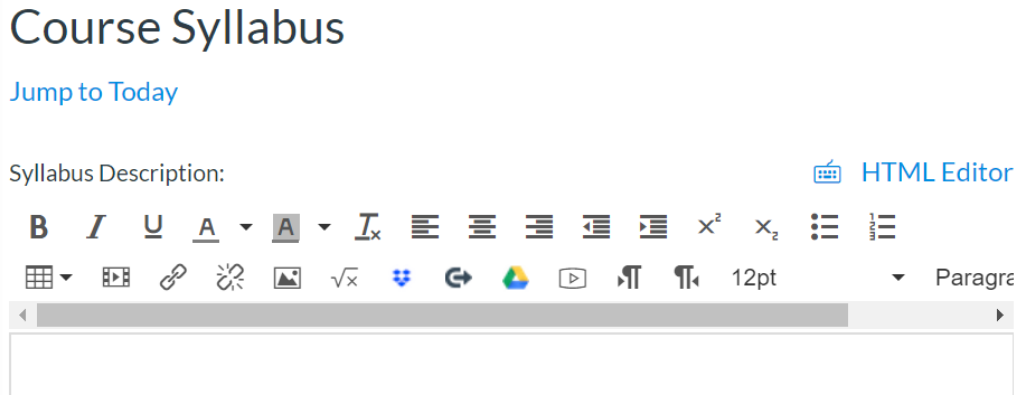
The Classic Editor placed all formatting options on the toolbar, and looked like this:
The new editor places many of these functions under nested dropdown menus. The default view shows only the most common formatting tools, with additional tools available by clicking the three dots on the far right side of the toolbar:
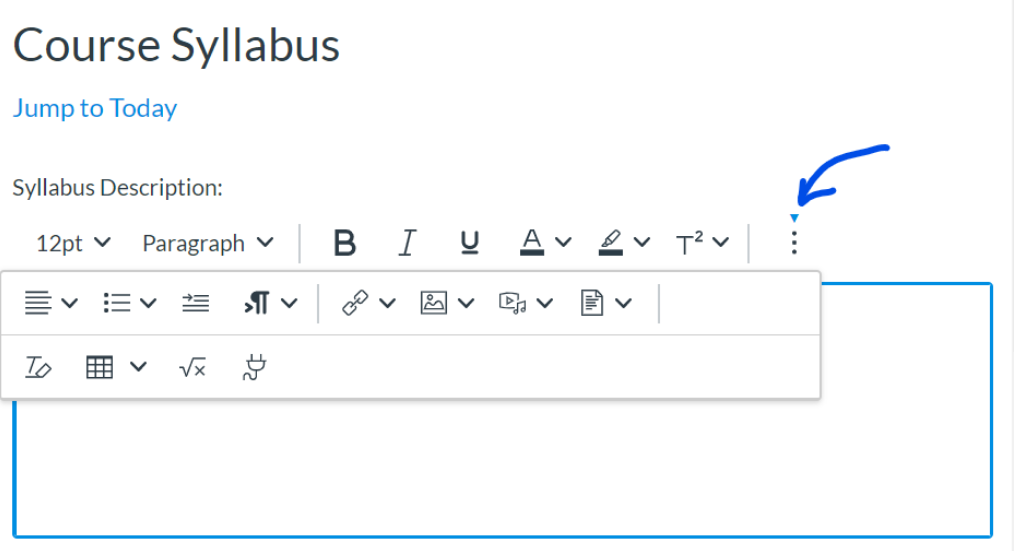
Of particular note is the Apps button (plug icon):

This button will allow you to insert links to a OneDrive, Dropbox, or Google Drive file or folder from directly within Canvas. This is particularly useful for sharing media such as audio, video, or high–resolution images without taking up space in your Canvas course. OneDrive is also an option for accepting assignment submissions from your students.
More information on using OneDrive (which all UMW students and faculty have access to through Outlook/Office 365) on our DLS OneDrive tool page.
These changes will take place automatically for all users on Friday, 5/8/2020, so no action is required on your part. If you have questions about these changes, please contact Digital Learning Support at dls@umw.edu, or via our contact form.